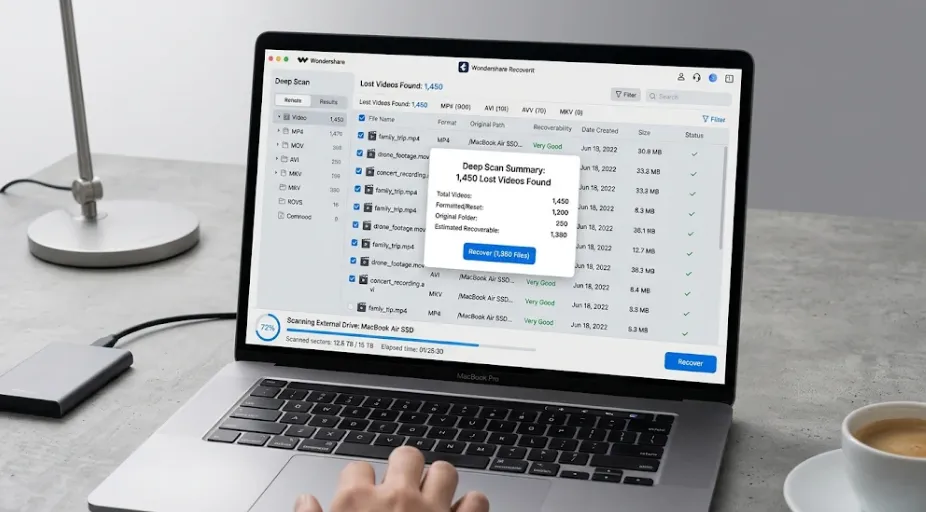
A factory reset feels like the end of the line. Your phone, camera, drone, or computer wipes everything – settings, apps, and all the files that were on it. If your videos were part of that reset, it is natural to assume they are gone forever.
But factory resets are not as final as they seem. In many cases, video files can be recovered after a factory reset – because the reset does not always physically erase the data. Here is what actually happens, and how recovery works.
What a Factory Reset Actually Does
There are two kinds of resets, and the difference decides whether your videos survive:
- Soft reset / restore defaults. This clears settings and configurations but often leaves user data – videos included – on the storage.
- Hard reset / wipe. This reformats the storage, clearing the file system index. The video data itself is usually still physically present, just no longer referenced.
The key insight: even a hard reset rarely writes over every byte of data. It clears the map to your files, but the files themselves linger until new data overwrites them. That is the window recovery software works with.
Where Your Videos Live After a Reset
- Phones and tablets. Videos on internal storage or SD cards survive resets differently; SD cards often keep their data unless explicitly wiped.
- Cameras and drones. A “reset” usually refers to the card – if the card was reformatted, recovery follows the formatted-card playbook.
- Computers. A system reset that reformats the drive clears the file system, but a deep scan can still find video data in the raw sectors
In every case, the recovery principle is the same: stop using the storage, and scan it with a tool that reads raw data.
Step-by-Step: Recover Videos After a Factory Reset
Step 1 – Stop Using the Device
The moment you realize videos are missing, stop. Do not take new photos, record new clips, install apps, or sync anything. Every write to the storage can overwrite the reset video data.
Step 2 – Scan the Storage with Recoverit
Wondershare Recoverit finds video files after resets and reformats by reading the raw data instead of trusting the file system. The same engine powers the Wondershare Recoverit platform, so the recovery workflow is consistent whether you are scanning a phone, a card, or a whole computer.
- Launch Recoverit and select the storage: the SD card, the phone’s storage (via USB), or the computer drive.
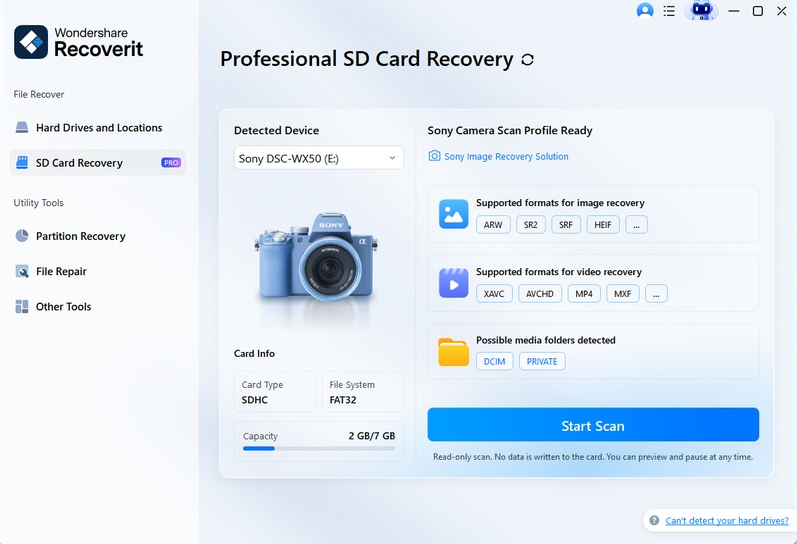
- Click Scan and run a deep scan – this is the mode that finds files the reset removed from the index.
3. Watch for your videos as results appear; stop early once you spot them.
Step 3 – Preview and Recover
Filter by video type and preview the clips. Recoverit plays video previews so you can confirm the footage is intact. Select what you need and click Recover, saving to a different drive than the one being scanned.
Why Deep Scan Matters After a Reset
A factory reset or reformat removes the file system entries for your videos. A quick scan looks at those entries and finds nothing. A deep scan reads the raw sectors of the storage and rebuilds files from their signatures – video files have distinctive headers that make them findable even with no file system reference at all.
This is why the video recovery module and the SD card recovery module both default to deep scanning for reset and reformat scenarios. The data is there; the deep scan is how you find it.
What Affects Your Chances
- Time since the reset. The longer the device has been used, the more data has overwritten the old videos.
- Amount of new data. Heavy use after a reset (new apps, new recordings, syncing) reduces recoverability.
- Reset type. Soft resets preserve more data than hard wipes.
- Storage type. SD cards often recover better than heavily-used internal drives.
If the Device Is Encrypted or Locked
Some modern devices encrypt storage, and after a reset the encryption keys may be gone – making raw recovery much harder. If your videos were on an encrypted device that was reset, professional recovery services with specialized tools are the realistic option.
Preventing Reset Data Loss
- Back up before any reset. Copy videos to a computer, cloud, or external drive first.
- Remove the SD card before resetting. Cards are separate storage; pulling them protects footage.
- Read the reset warning. “This will erase all data” means back up first, not proceed.
- Test recovery early. The sooner you scan after a reset, the better the odds.
Conclusion
Also read: How to Recover Files from an Emptied Trash on Mac
Video recovery after a factory reset is possible in most cases – resets clear the file system map, but the video data lingers until overwritten. Stop using the device, run a deep scan on the raw storage, and recover the clips by their signatures. With Wondershare Recoverit, you can recover videos after a factory reset by scanning the storage deeply and previewing what you find. The reset may have cleared your device – but it does not have to clear your footage.